Master Policy
The Master Policy is the centralized policy management interface that defines the behavior of all users, groups, and platforms within the system.
Through this page, administrators can configure security, access, and password policies at both the platform and user/group levels.
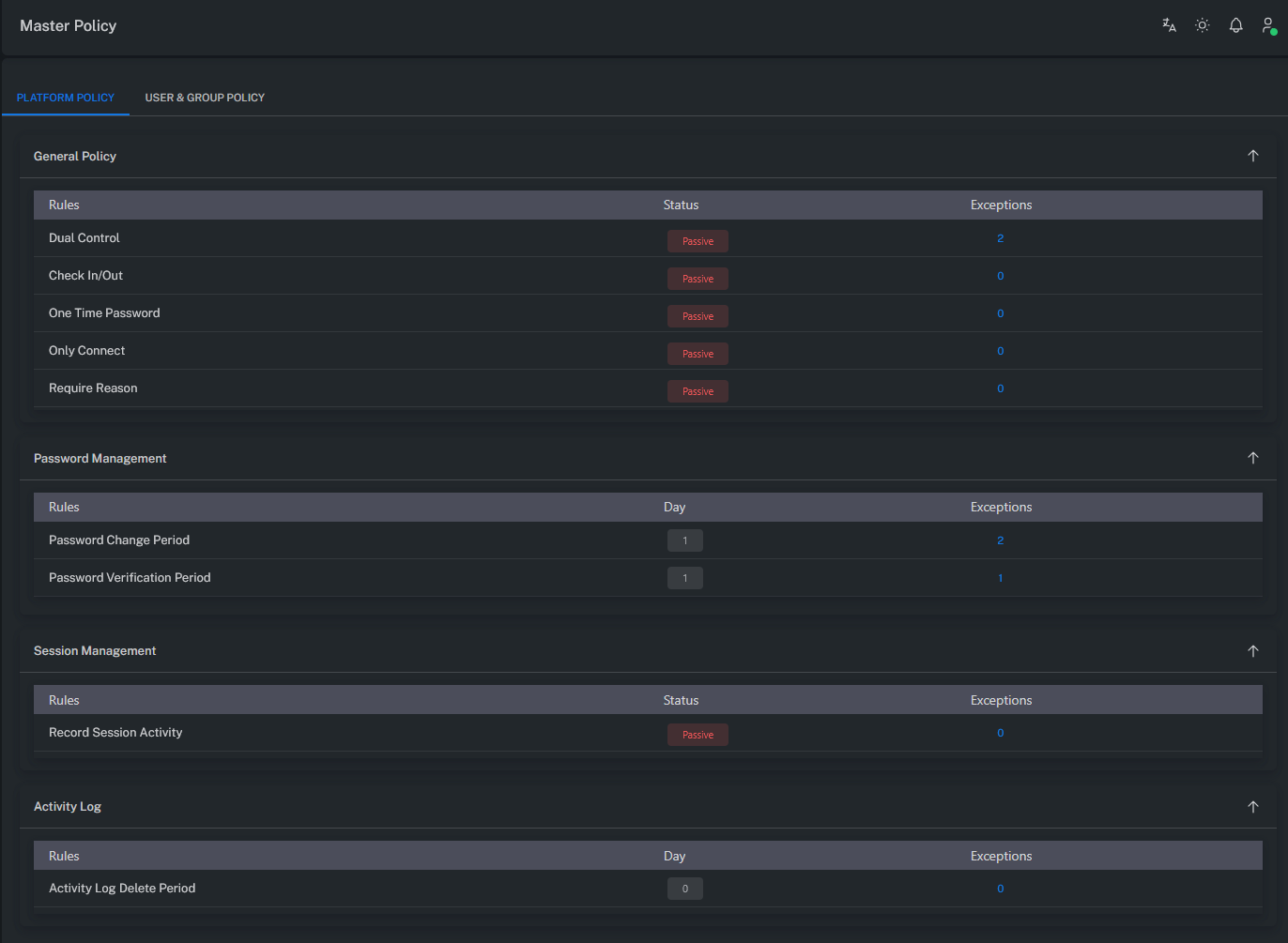
Platform Level Policies
The following policies are applied at the platform level.
Each one enforces or restricts specific behaviors during account usage.
Dual Control
Requires approval before performing SHOW, COPY, or CONNECT operations on an account.
When enabled, the Request / Approval process must be completed before the operation can proceed.
Check In / Out
Ensures that an account can only be used by one user at a time.
If another user attempts to access the same account while it is in use, the action is blocked.
One Time Password
Automatically changes the account password after each use.
This ensures a new password is generated after every session for improved security.
Only Connect
Restricts account usage to CONNECT-only mode.
Password viewing or copying operations (SHOW, COPY) are disabled.
Require Reason
Forces users to provide a Reason when using an account.
Each action is logged along with its justification for auditing purposes.
Password Change Period
Defines the automatic password rotation period.
After X days since the last password change, the system automatically generates a new one.
Password Verification Period
Specifies how frequently password verification (check) operations should be performed.
After X days since the last verification, the password validity check runs automatically.
Record Session Activity
Enables detailed logging of all session activities.
When activated, every user action within a session is recorded for auditing.
Activity Log Delete Period
Determines how long activity logs are retained in the system.
After X days, log records are automatically deleted.
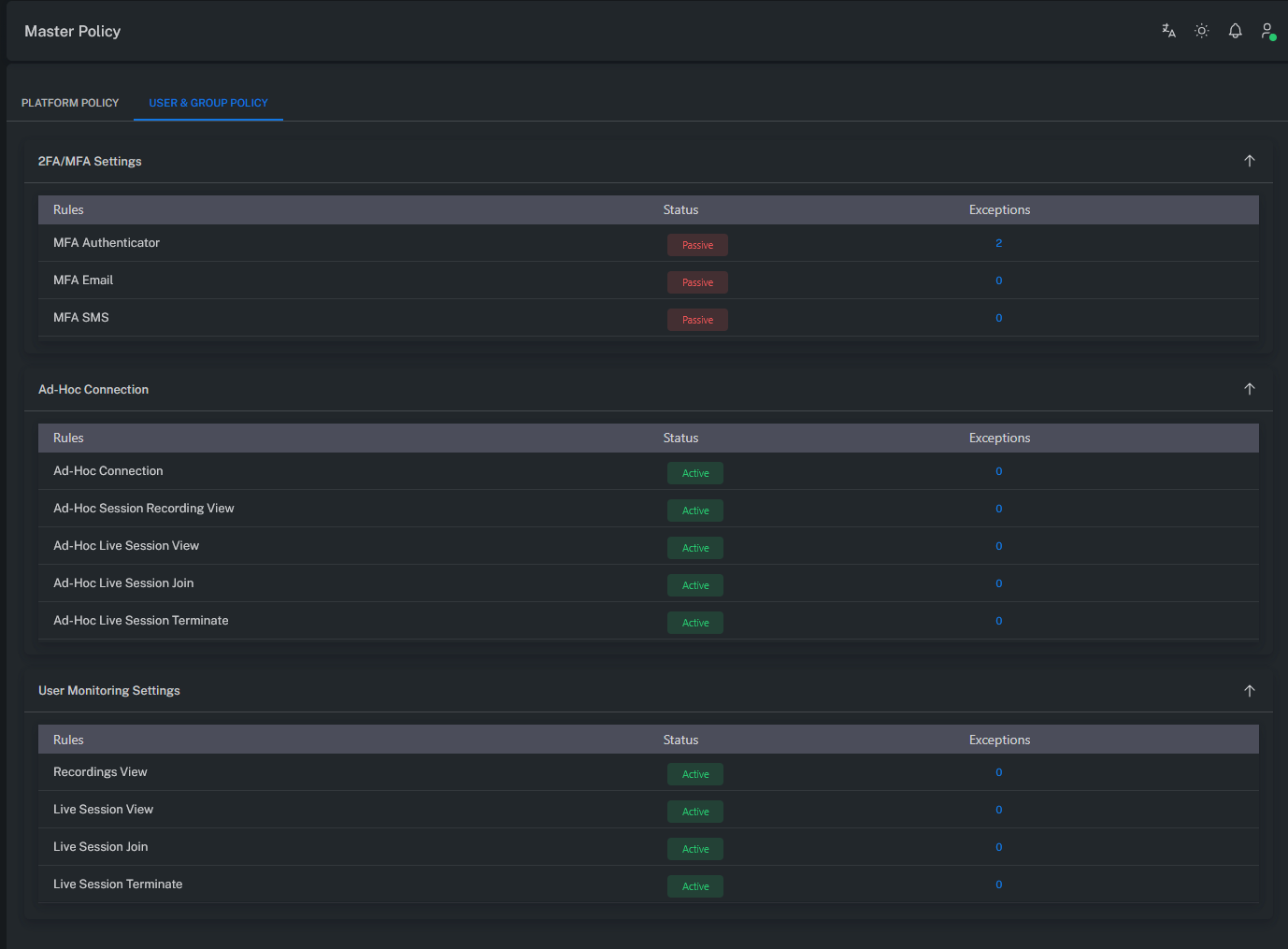
User / Group Level Policies
The following policies apply at the User or Group level.
These control user authentication, MFA settings, and monitoring permissions.
MFA Authenticator
Requires users to log in using Authenticator apps (Google, Microsoft, etc.).
A verification code is requested during login.
MFA Email
Sends a verification code to the user’s email during login.
Email server settings must be properly configured.
Note: Verify email server configuration in the Mail Server Settings section.
MFA SMS
Sends a verification code via SMS during login.
A valid phone number must be configured in the user’s profile.
Note: Ensure SMS server settings are properly configured.
AD-HOC Connection
Enables the AD-HOC Connection feature on the Account View screen.
After granting this permission, the user must log out and log back in for changes to take effect.
AD-HOC Session Recording View
Allows users to view AD-HOC session recordings.
The session must be restarted for the permission to apply.
AD-HOC Session Live Session View
Grants the ability to view live AD-HOC sessions.
A new login is required after applying this permission.
AD-HOC Session Live Session Join
Allows users to join live AD-HOC sessions.
The user must log out and log back in for the permission to take effect.
AD-HOC Session Live Session Terminate
Grants permission to terminate AD-HOC sessions.
Changes take effect after the user signs in again.
Recording View
Activates access to Monitoring → Recordings.
To view this page, the user must have appropriate permissions on the corresponding Safe.
Note: The user must log out and log back in after the permission is granted.
See the Safe Permissions section for more details.
Live Session View
Grants access to Monitoring → Live Connection.
The user must have authorization for the relevant Safe.
Note: A re-login is required after permission changes.
Live Session Join
Activates the JOIN button under Monitoring → Live Connection.
Users with this permission can join live sessions.
Safe-level authorization is required.
Note: A re-login is required after permission changes.
Live Session Terminate
Activates the TERMINATE button under Monitoring → Live Connection.
Allows users to terminate live sessions.
Safe-level authorization is mandatory.
Note: A re-login is required after permission changes.
Summary
The Master Policy centrally manages all access, authentication, and session behaviors within ZT-PAM.
Platform-level rules define how privileged accounts are used, while user/group-level policies govern MFA, AD-HOC access, and monitoring privileges.
This structure ensures both security consistency and policy integrity across the entire system.